
Overview
MidiBro is plugin-only (no standalone app). Two plugins work together:
- MidiBro Master: the browser and controller. Load it once; it makes no sound.
- MidiBro Receiver: plays the selected MidiStack cell into your synth. Two builds exist: the plain MIDI-FX Receiver, and the instrument-type Receiver Instrument.
Master and Receivers connect automatically over MidiBro’s internal link. You do not route MIDI between Master and Receiver by hand.
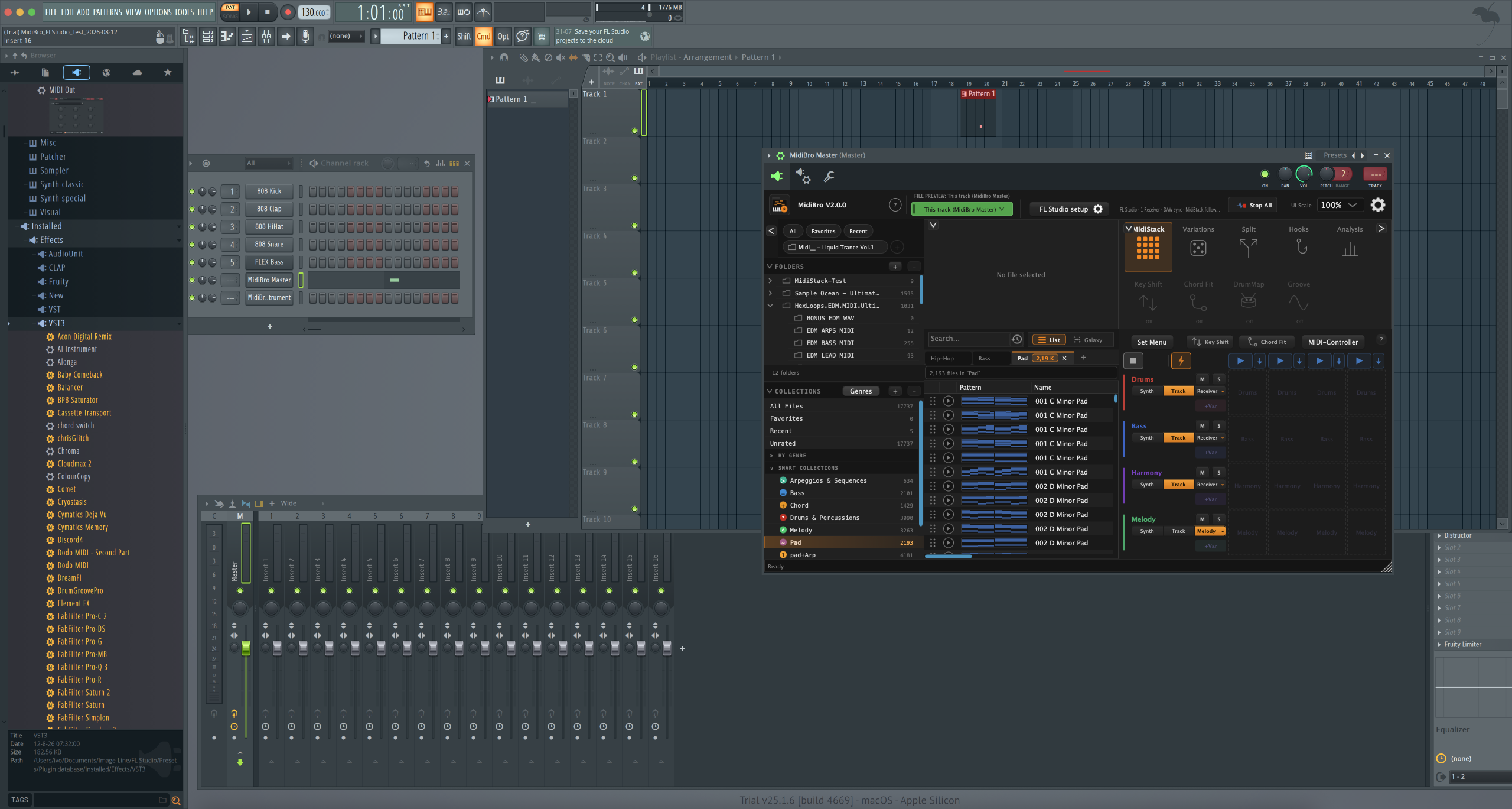
FL Studio’s MIDI routing between separate VST3 plugins is limited, so the MIDI-FX Receiver and your synth go inside a Patcher, where MIDI is wired internally. If you just want to hear MidiBro play without touching Patcher at all, MidiBro Receiver Instrument is the simpler starting point — see below.
Prerequisites
- FL Studio 21 or newer (tested on FL Studio 2025, Trial v25.1.6)
- MidiBro Master VST3 and MidiBro Receiver VST3 (or MidiBro Receiver Instrument VST3)
- Windows:
C:\Program Files\Common Files\VST3\(vendor: ivoschi) - Mac:
/Library/Audio/Plug-Ins/VST3/
- Windows:
Setup
- 1#
Add MidiBro Master to the Channel Rack (silent controller/browser):
Add > More plugins...→ searchMidiBro Master→ load.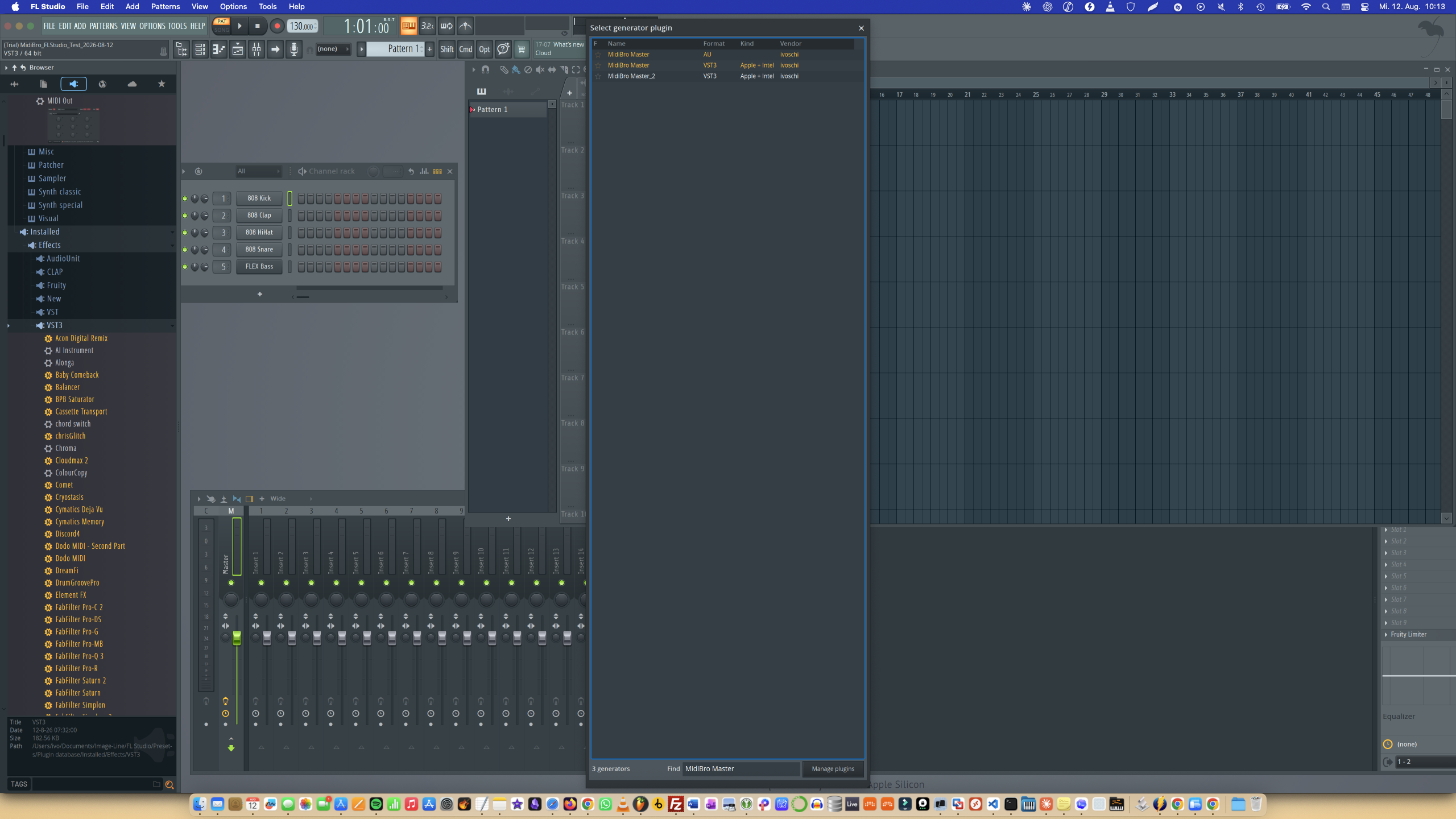
FL Studio’s “Select generator plugin” picker listing MidiBro Master as AU and VST3 - 2#
Add a Patcher channel (
Add > Generators > Patcher > Patcher, or drag from the browser tree). - 3#
Load MidiBro Receiver into the Patcher via FL’s Plugin Manager, not Patcher’s own picker. Open
Options > Manage plugins, findMidiBro Receiverin the list, and drag its row directly onto the Patcher canvas. It loads as a module and auto-wires an audio cable to “To FL Studio”. See the note below — searching for it inside Patcher itself will come up empty. - 4#
Add your synth as a second module in the same Patcher (right-click the canvas → Add plugin), then draw a MIDI cable from the Receiver’s MIDI output to the synth’s MIDI input, and an audio cable from the synth to the Patcher output.
- 5#
Back in FL, route the Patcher channel to a mixer track.
- 6#
The Receiver auto-connects to the Master. In the Master, assign this Receiver as the output for a MidiStack row, then launch a cell, and check whether the synth plays.
The Receiver is hiding from the normal picker
MidiBro Receiver does not turn up if you search for it inside Patcher’s plugin picker, and it’s also missing from the Mixer’s insert effect list (right-click an empty slot → Select → More plugins...) — both normal places a user would look for a MIDI effect. That is not a failed install: Options > Manage plugins shows it correctly registered with Status: ok, VST3, Effect, vendor ivoschi.
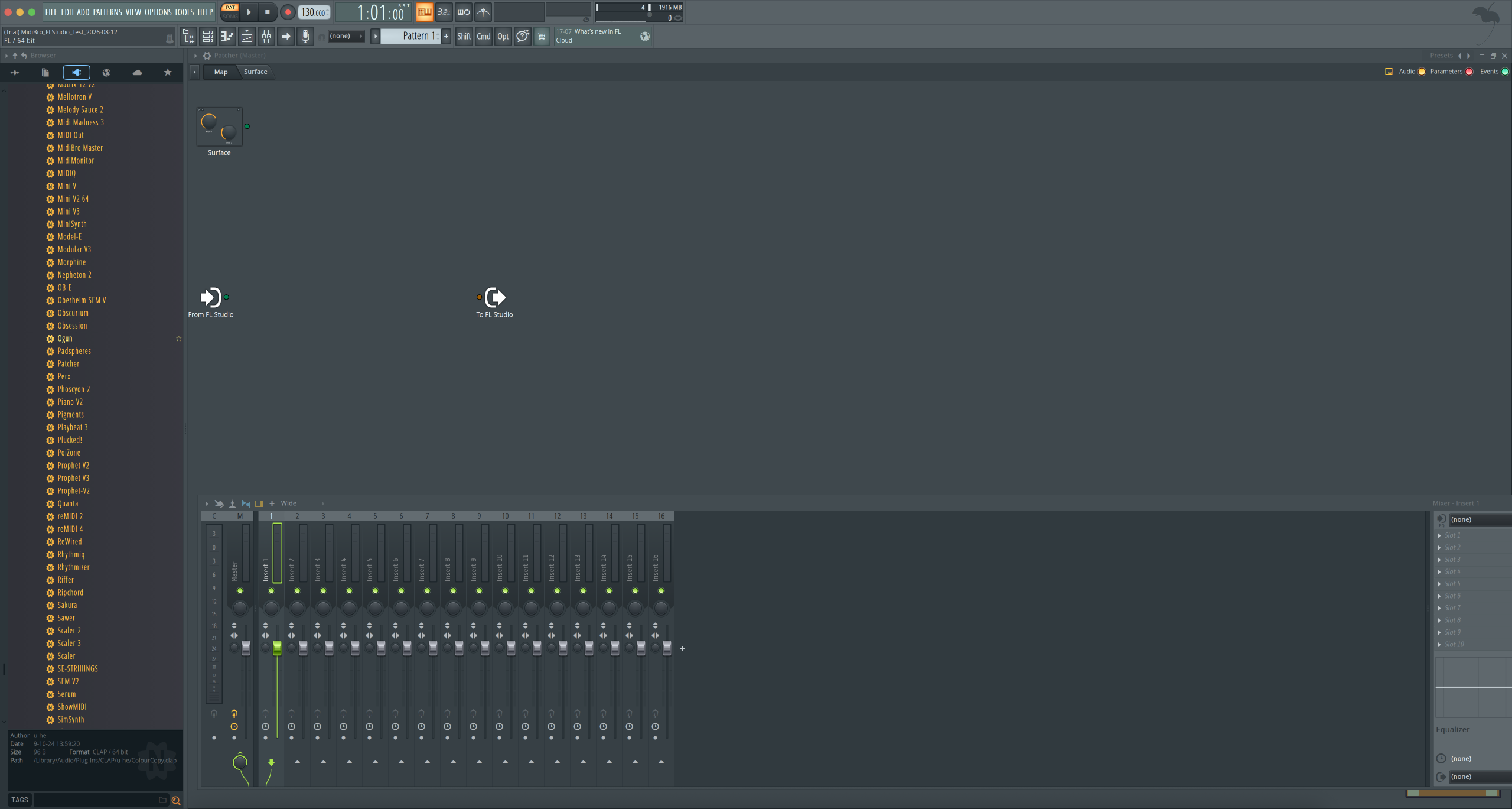
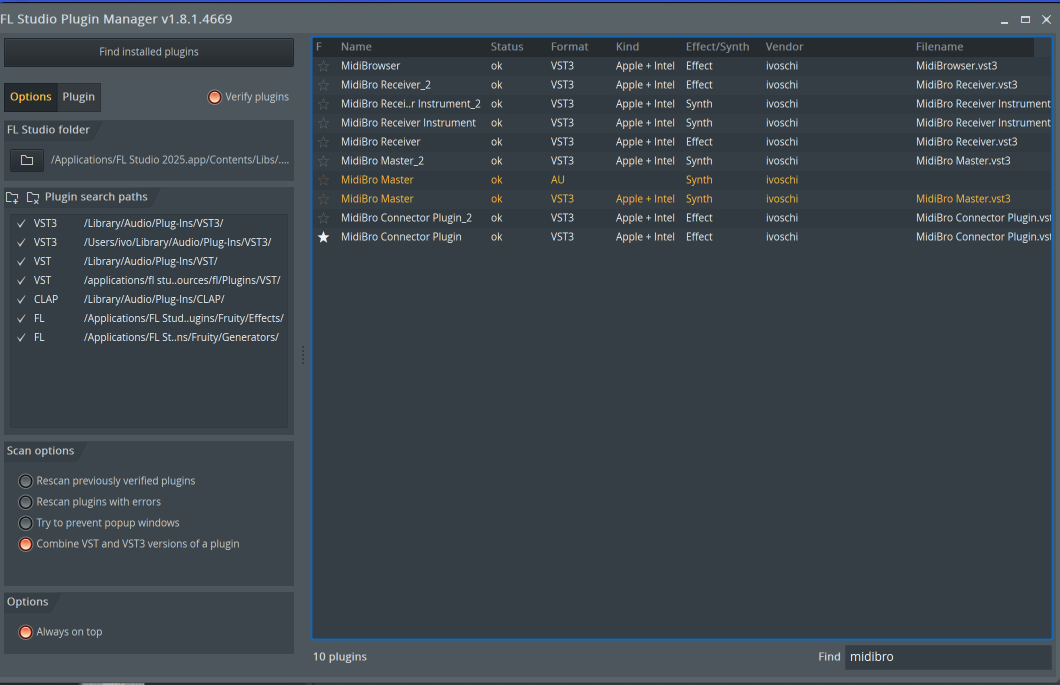
Working workaround: open Options > Manage plugins, find the MidiBro Receiver row, and drag it straight onto the Patcher canvas with the mouse. It loads immediately as a module and wires itself up — no extra setup step.
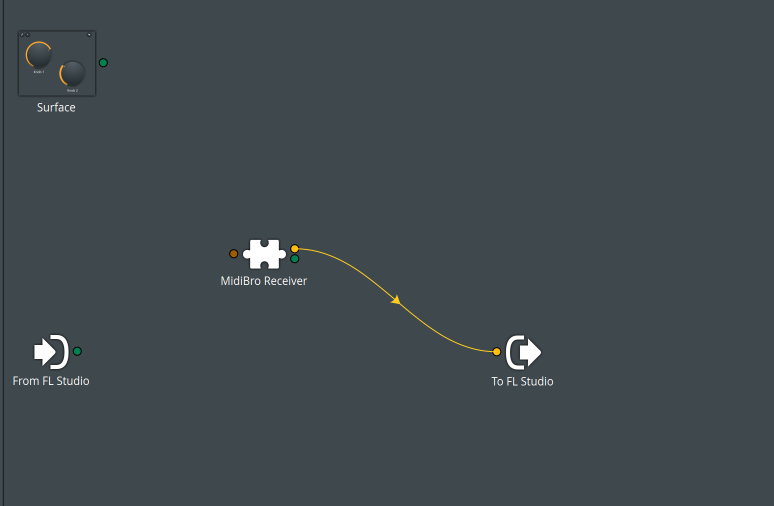
Wiring an instrument in behind it (MIDI cable to the synth’s input, audio cable out) is ordinary Patcher work and should follow the same pattern as step 4 above; we have not yet confirmed sound coming out the other end all the way to a synth, so treat this as the recipe to try rather than a guaranteed result.
A simpler starting point: MidiBro Receiver Instrument
If you just want to check that MidiBro is working, or don’t need to route into a specific existing synth plugin, skip Patcher entirely:
Add > More plugins...→ searchMidiBro Receiver→ load MidiBro Receiver Instrument into its own Channel Rack slot.- It connects to the Master automatically and shows “Connected · ready”, no MIDI cabling needed. Give it a name via the quick-name chip row.
- In the Master, every MidiStack row gets a second target button next to
Track. Pick your named Receiver from Receiver Plugins, then launch a cell.
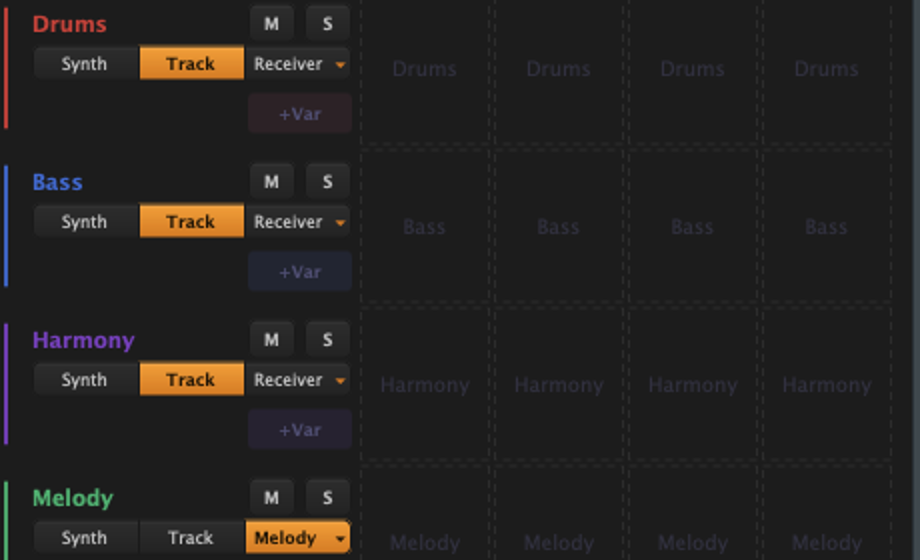
This produced audible output reliably in testing. Exactly how that audio reaches your mix — its own playback versus a further routing step — is not something we’ve pinned down yet, so if you need it to specifically drive an existing synth plugin, use the Patcher method above instead.
Master alone
We tried leaving a MidiStack row on the default Track target, with no Receiver in the project, and playing a note on the Master directly. It did not reach a second Channel Rack instrument — only the Master’s own mixer fader showed signal. FL Studio’s Channel Rack does not appear to offer a channel-to-channel MIDI receive option (checked: right-click a channel → Receive notes from, which only lists keyboard inputs; the wrapper’s Misc panel has no MIDI routing tab).
Only this one routing path was tried, so this is not a final verdict — a Patcher-based route between two Channel Rack instruments wasn’t tested. Until that’s confirmed, use MidiBro Receiver Instrument or the Patcher method above instead of relying on Track alone.
Which plugin variant
MidiBro Receiver Instrument is the easiest confirmed way to hear MidiBro play in FL Studio — load it, it connects automatically, done. Use the MidiBro Receiver (MIDI-FX) inside a Patcher when you need to feed MIDI into a specific existing synth plugin; it loads and wires up fine once you know the drag-in trick, but we have not independently confirmed audio all the way through to that synth.
Troubleshooting
| Problem | Solution |
|---|---|
| Receiver missing from Patcher’s plugin search or the Mixer’s effect list | Expected. Open Options > Manage plugins, find MidiBro Receiver there, and drag its row directly onto the Patcher canvas |
| No MIDI to synth (inside Patcher) | Check the MIDI cable drawn between the Receiver module and the synth module |
| No sound | Route the Patcher channel to a mixer track |
A Track-targeted row doesn’t reach a second Channel Rack instrument |
Not resolved yet; use MidiBro Receiver Instrument or the Patcher method instead |
| Plugin not found at all | Options > Manage plugins → Find plugins (rescan) |
| Status “Disconnected” | Confirm the Master is loaded; they connect automatically, allow a few seconds |