
Overview
MidiBro is plugin-only (no standalone app). Two plugins work together:
- MidiBro Master: the browser and controller. Load it once; it makes no sound.
- MidiBro Receiver Instrument: plays the selected MidiStack cell; you route its MIDI to your synth on another track.
Master and Receivers connect automatically over MidiBro’s internal link. You do not route MIDI between Master and Receiver by hand.
Ableton does not host a third-party MIDI effect before an instrument on the same track, so MidiBro always uses two-track routing: one track sends, the instrument track receives.
There are two senders, and you can mix them in one set:
- Straight from the Master. Set a MidiStack row’s output to This track (MidiBro Master) and its notes leave through the Master’s own MIDI output. Any track can pick them up. No Receiver needed.
- Through a Receiver. All direct rows share that single output, so as soon as you want a second instrument playing something else, give each one a MidiBro Receiver Instrument track of its own.
Prerequisites
- Ableton Live 11 or newer
- MidiBro Master VST3 and MidiBro Receiver Instrument VST3
- Mac:
/Library/Audio/Plug-Ins/VST3/ - Windows:
C:\Program Files\Common Files\VST3\(vendor: ivoschi)
- Mac:
Setup
- 1#Create a MIDI track for the Master and drop MidiBro Master on it. It stays silent; this is your browser/controller.
- 2#Create a MIDI track for your instrument (Operator, Serum, a Drum Rack).
- 3#Decide what feeds that track. For the first instrument, nothing more to load: the Master feeds it directly. For every further instrument, add one more MIDI track and drop MidiBro Receiver Instrument on it.
- 4#On the instrument track, set MIDI From to the track that feeds it, so either the Master track or its Receiver track. In the second dropdown choose the plugin name (MidiBro Master or MidiBro Receiver Instrument), not “Post FX”. Set Monitor to In.
- 5#In the Master, set the output of the MidiStack row: This track (MidiBro Master) for the direct route, or the Receiver’s name. Launch a cell, and the instrument plays.
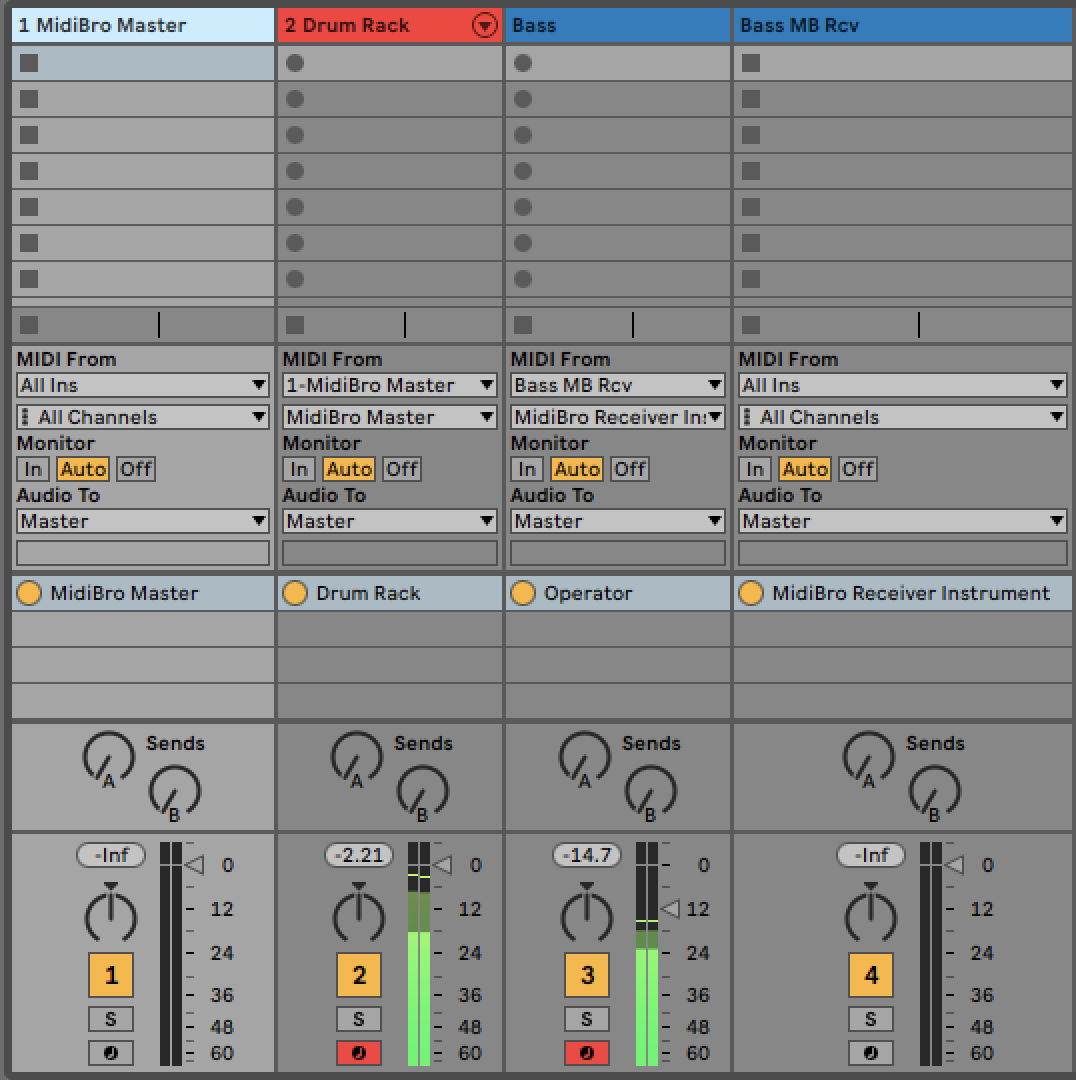
Which plugin variant
For one instrument you need no Receiver at all: route the MidiStack row to This track (MidiBro Master).
From the second instrument on, use MidiBro Receiver Instrument (VST3), one per voice. The plain MIDI-FX Receiver cannot sit before an instrument in Ableton; on Windows it may not load at all.
Troubleshooting
| Problem | Solution |
|---|---|
| No sound | Instrument track: MIDI From = the plugin tap, Monitor = In |
| Nothing on the direct route | Set the MidiStack row’s output to This track (MidiBro Master); if it still points at the internal GM synth, the notes never leave the plugin |
| Two synths play the same notes | In “MIDI From” pick the plugin name, not “Post FX” |
| Receiver not listed as MIDI From | Load the Receiver Instrument first, then re-open the dropdown |
| Status “Disconnected” | Confirm the Master is loaded; they connect automatically, allow a few seconds |